
JGT Legend to Tool Chest for Bluebeam Revu
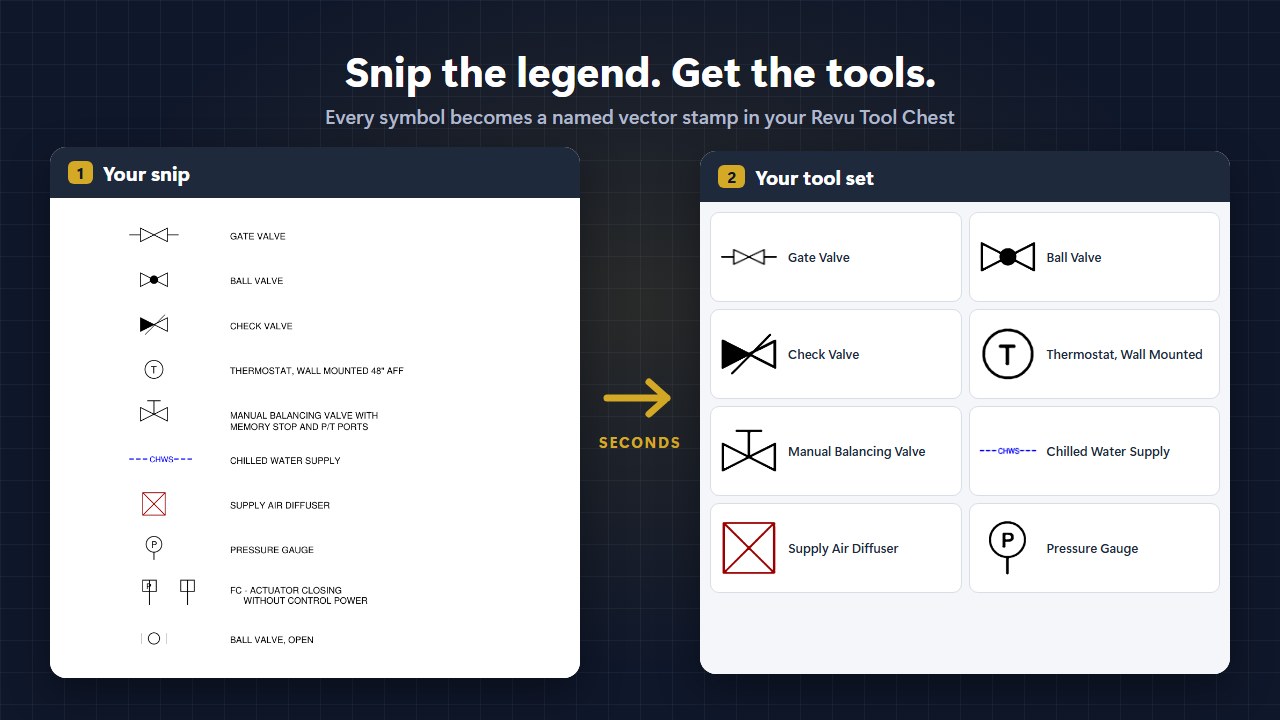
Snip the symbols you want from a drawing legend, paste them in, answer a few quick questions, and get a Revu tool set: every symbol becomes a crisp vector stamp in your Tool Chest, already named from the legend.
Pay what you want, $2 minimum. One-time purchase, no subscription, no account. Windows 10 or 11 (64-bit) and Bluebeam Revu (tested on Revu 21). Version 0.6.1.
How it works
- Open Legend to Tool Chest. It opens in its own window.
- Zoom in on the legend, press Windows + Shift + S and snip the symbols you want, names included. Names can sit beside the symbols (P&ID style) or under them (duct fitting and equipment grids). Press Ctrl + V. Paste as many snips as you like.
- Answer the questions: a name for the tool set, how tall a typical symbol should be (1/8" to 1/2"), names as on the sheet or Title Case, colors, and line weight.
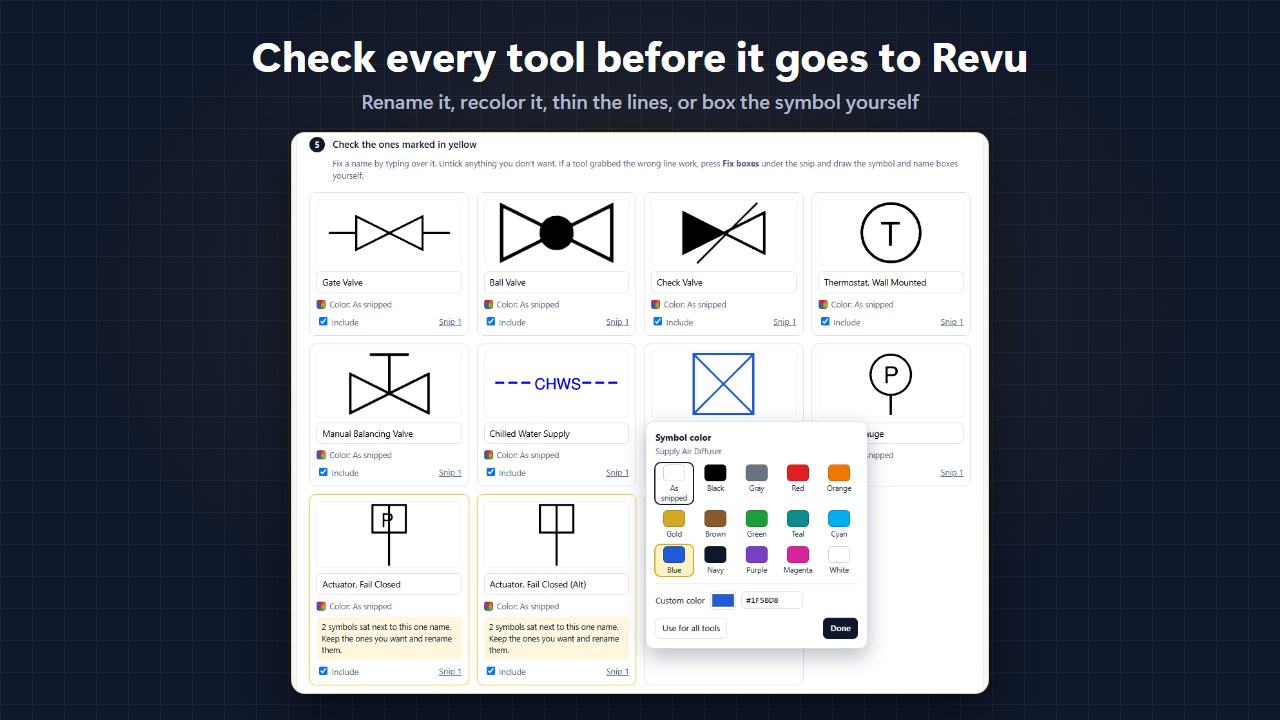
- Check the cards. Fix a name by typing over it, untick what you don't want, click a picture to recolor it.
- Press Add to Revu. The tool set appears at the bottom of your Tool Chest, and a copy is saved in Documents.
What's in it
| Feature | What it does |
|---|---|
| True vector stamps | Solid line work is traced as exact outlines, so arrowheads stay pointed and junctions stay crisp at any zoom. Faint CAD hairlines are traced along their centers. |
| Names read for you | The text reader built into Windows reads each description, offline. Anything it's unsure of is marked in yellow for a second look. |
| Any legend layout | Names beside the symbols or under them in a grid, picked automatically, with a one-click override. Dimension notes like R=1-1/2D stay with their fitting. |
| Fix boxes | When two symbols touch or a tool grabs the wrong line work, draw the symbol box and the name box yourself in a few seconds. |
| Per-symbol colors | Click any symbol for labeled swatches, a custom color or hex code, or one color for the whole set. Or keep the drawing's colors, or make everything black. |
| Line weight | A slider from thinner to thicker, with live previews, for screenshots that make line work heavier than the CAD pen. |
| True size | Stamps go down at the symbol height you pick. Each stamp's Subject is its name, so it shows in the Markups List. |
| Fast | A big, zoomed-in snip is read in a couple of seconds. |
| Private | Everything runs on your PC. Your drawings never leave it. |
Install
- Buy on Gumroad and download
JGT-Legend-to-Tool-Chest-Setup-0.6.1.exefrom your receipt. - Run it. No admin rights needed; it installs for your user account. If Windows shows "Windows protected your PC", choose More info, then Run anyway.
- Open Legend to Tool Chest from the Start menu. The user guide is in the Start menu too.
To update, run a newer installer; it closes a running copy for you. To remove it: Windows Settings, Apps, JGT Legend to Tool Chest, Uninstall. Your saved tool sets stay in Documents.
Help
The user guide covers snipping, every question, Fix boxes, colors, line weight, getting tool sets into Revu and taking them out again, and troubleshooting.
- Symbols look rough: zoom in on the sheet 2 to 3 times before you snip, then try the line weight slider.
- Two symbols became one tool: they touch on the drawing. Use Fix boxes to box each one.
- Delete a tool set from Revu: Tool Chest, Manage Tool Sets, select it, Remove.
- Still stuck? Reply to your Gumroad receipt email with the snip and it comes straight to me.
Made by JGriffith Tech. Everything runs on your computer and nothing from your drawings is sent anywhere. Not affiliated with or endorsed by Bluebeam, Inc. Bluebeam and Revu are registered trademarks or trademarks of Bluebeam, Inc.